

Ingest Data Into a Destination Environment
This doc walks you through selecting extracted views, running an ingestion into your destination IFS Cloud environment, and retrying any views that fail.
none1. Prerequisites
IntelliAI installed and activated. See Get Started With IntelliAI.
At least one completed extraction. See Extract Data From a Source Environment.
The required IntelliAI component deployed in your destination IFS environment. Contact IntelliAI support if you haven't arranged this yet.
An IAM client set up in your destination IFS Cloud environment.
If you haven't completed an extraction, the ingestion tab shows a message telling you to complete an extraction first, and there are no views to select.
2. Connect Your Destination Environment
In the destination environment field, enter the hostname of your destination IFS Cloud environment.
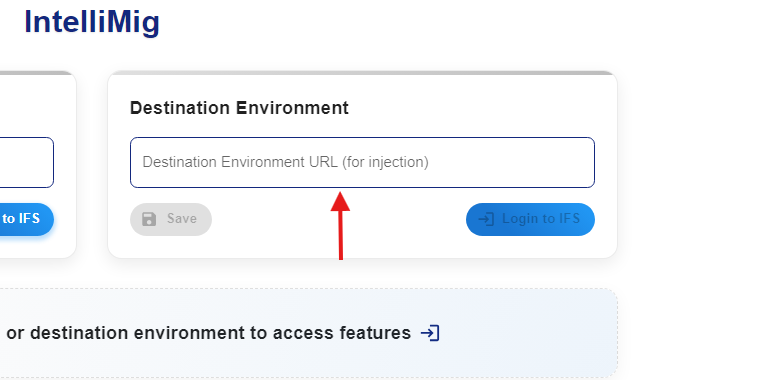
Select Login. A popup window opens to your IFS environment's login page.
Sign in with your IFS credentials. The popup closes automatically and returns you to IntelliAI, now signed in to your destination environment.
You can only be signed in to one environment, source or destination, at a time. Signing in to your destination environment automatically signs you out of your source environment, and the other way around.
3. Select Views to Ingest
The view tree shows the views from your most recent extraction, using the same search box, Select All, Deselect All, and Show Selected controls as extraction.
Select the checkbox next to each view you want to ingest.
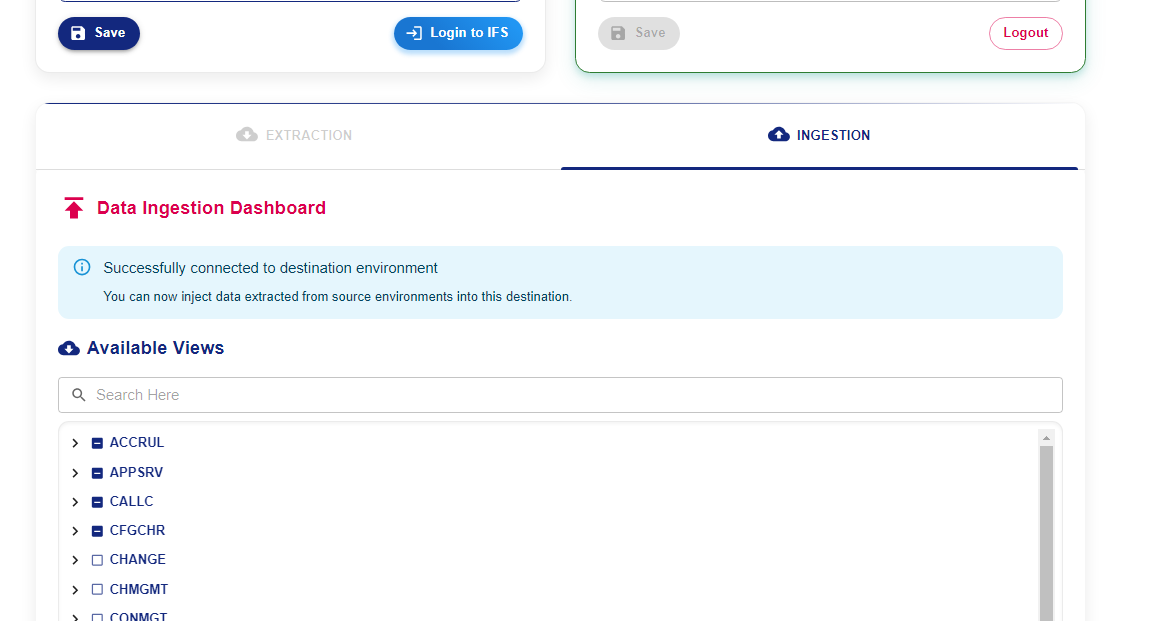
There's no separate save step for ingestion. Your selection is saved automatically when you start the ingestion.
4. Start the Ingestion
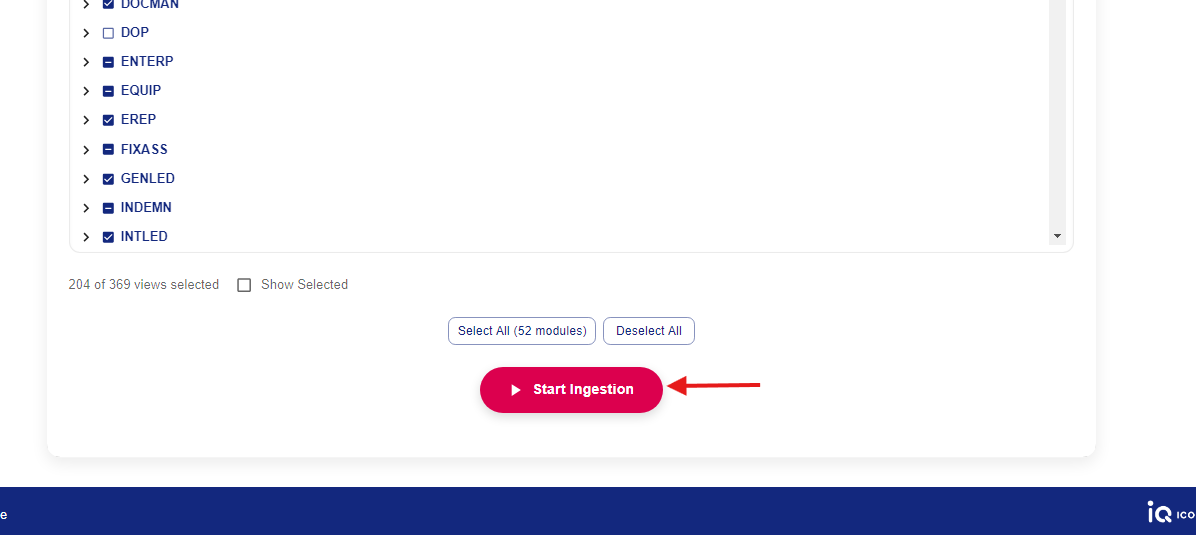
Select Start Ingestion. Confirm your view selection before selecting it, since ingestion starts immediately. If your destination session has expired, IntelliAI asks you to sign in again before continuing.
While an ingestion is running, IntelliAI keeps your computer from going to sleep, so a long-running ingestion won't be interrupted. Your screen can still turn off or lock as normal; only system sleep is prevented.
5. Monitor Progress
The ingestion progress page shows the same overall structure as extraction: a status card with progress and run details, and two tabs, Ingested Views and Logs.
The Ingestion Summary has more detail than extraction's, since IFS processes each view through more stages: Total Views, Staged, Completed, Completed With Errors, Failed/Skipped, and Remaining counts.
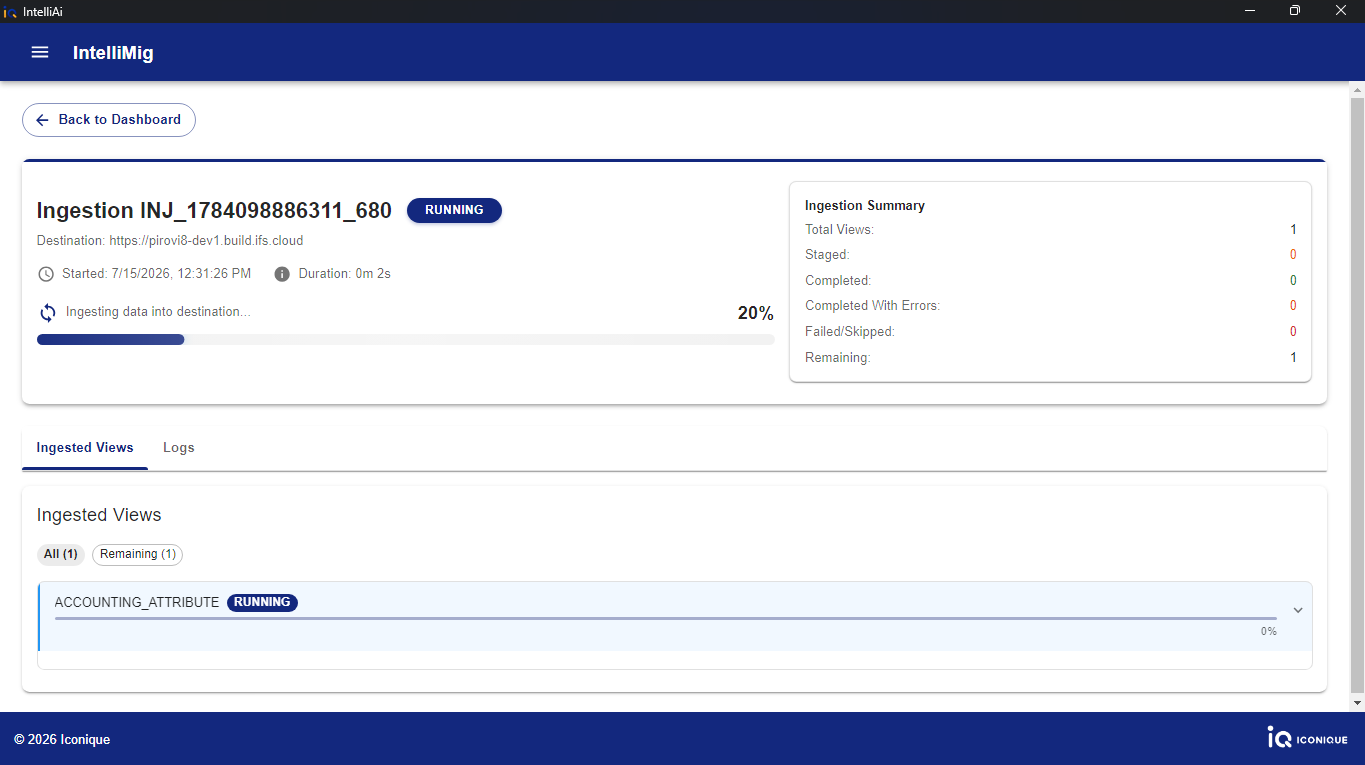
Each view moves through its own status as IFS processes it: Staging, Staged, In Progress, Completed, Completed with Errors, or Failed. Expand a view's row to see its logs, including how many rows were sent and loaded. Use the status filter chips above the list to narrow the view to, for example, only failed views.
6. Sequence Synchronization
After selected views finish loading in IFS (Staging → In Progress → Completed / Completed with Errors), IntelliAI automatically applies Oracle sequences on your destination environment. You don’t start this separately, it runs as the last step of the same ingestion.
Sequence values come from the most recent extraction snapshot (sequences.json). If that file is missing or empty, sequence apply is skipped and view ingestion still completes normally.
In Logs, look for messages such as:
Waiting for Phase 2 load polling to complete... (IntelliAI waits until IFS has finished loading staged tables)
Sequences applied successfully
Sequence apply only begins after table loads reach a terminal state. Partial sequence failures do not roll back views that already loaded successfully. Details for those failures appear in the Logs tab.
7. Returning to an Ingestion
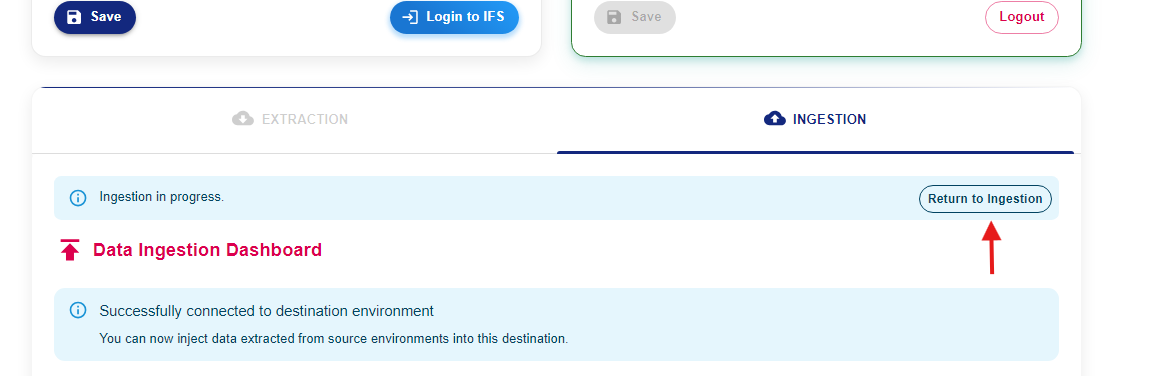
If you navigate away from the progress page while ingestion is still running, for example back to the IntelliMig tab, IntelliAI shows an Ingestion in progress banner with a Return to Ingestion button that takes you back to it.
8. Retry Failed Views
If your most recent ingestion run finishes with failed views, IntelliAI detects this automatically and shows a separate Re-run Failed Views banner on the ingestion tab, naming the run and how many views failed. This banner also survives closing and reopening IntelliAI.

Select Re-run Failed Views to retry. IntelliAI automatically selects only the views that failed and starts a new ingestion for them. You don't need to reselect views manually. If a failed view can no longer be matched (for example, it's no longer part of your extracted views), IntelliAI skips it and warns you, and still retries the views it could match.
9. Known Limitations
Unique constraint violations on the destination environment surface as errors during ingestion.
10. Next Steps
Run another extraction if you need to bring over more views. See Extract Data From a Source Environment.
Last updated 9/10/2026